ClothesChange AI

Free Multiple AI Face Swap for 30 Seconds | No Sign Up & No Watermark

Swap multiple faces in photos, videos, and GIFs online with AI. Get 30 seconds free with no sign up, match each face, and download with no watermark.

1

Add original media

2

Match faces

Select a frame and detect faces first.

3

Create face swap

Face enhance
Creation mode

Result

Ready for your face swap

Your face swap result will appear here.

Creation data is automatically deleted after 1 day. Please save your results promptly.

  • 30 seconds free
  • No sign up
  • No watermark
  • Photos, videos & GIFs
  • Swap multiple faces
  • HD face enhance

ONE TOOL, MANY FACES

What is an AI multiple face swap?

A multiple face swap changes two or more people in the same photo, video, or GIF. The AI detects each person separately, so you can assign a different replacement photo to every face. This makes the tool useful for group pictures, clips with friends, team videos, and animated memes.

Upload your media, check the detected people, and choose who should replace whom. You can leave one person unchanged, edit several people, or update every clear face in the scene. Free use follows the available quota rather than an unlimited plan; video and GIF projects include a selected clip of up to 30 seconds.

Try AI multiple face swap online without creating an account. The available free quota adds no ClothesChange AI watermark to the result. Sign in only when you want to use purchased Credits or save creations to your account history.
GROUP SCENES, CLEAR MAPPING

See how separate face assignments work

These examples show the main idea behind multi-person editing: identify everyone in the source, assign the intended replacement to each person, and review the group as one result.

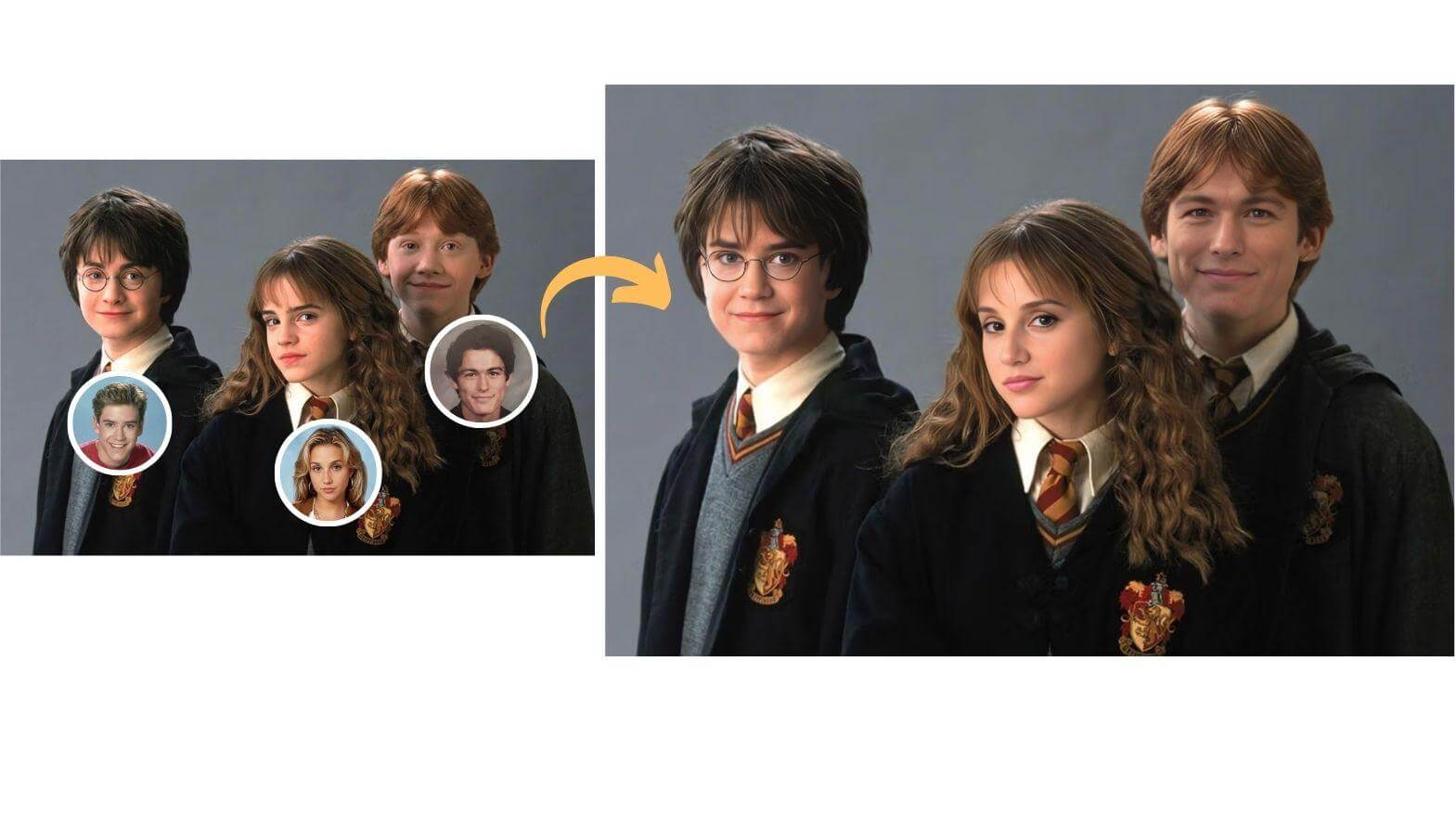
Three-person group with separate replacement portraits and the edited group result

Assign a different face to each person

Separate references make it clear which replacement belongs to each detected person in a group.

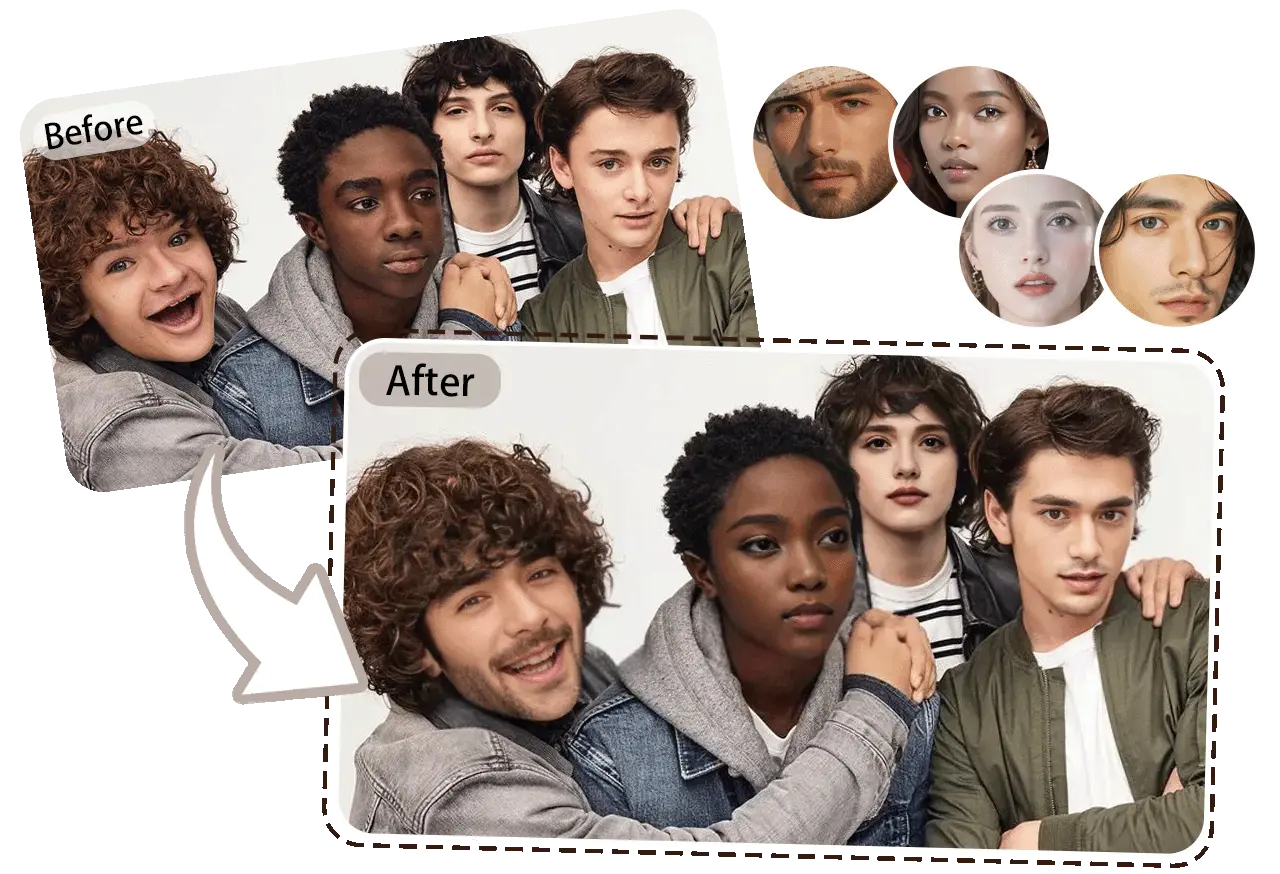
Before and after group portrait with four individually assigned replacement faces

Keep the group layout intact

The people, pose, and background stay in place while the selected faces change.

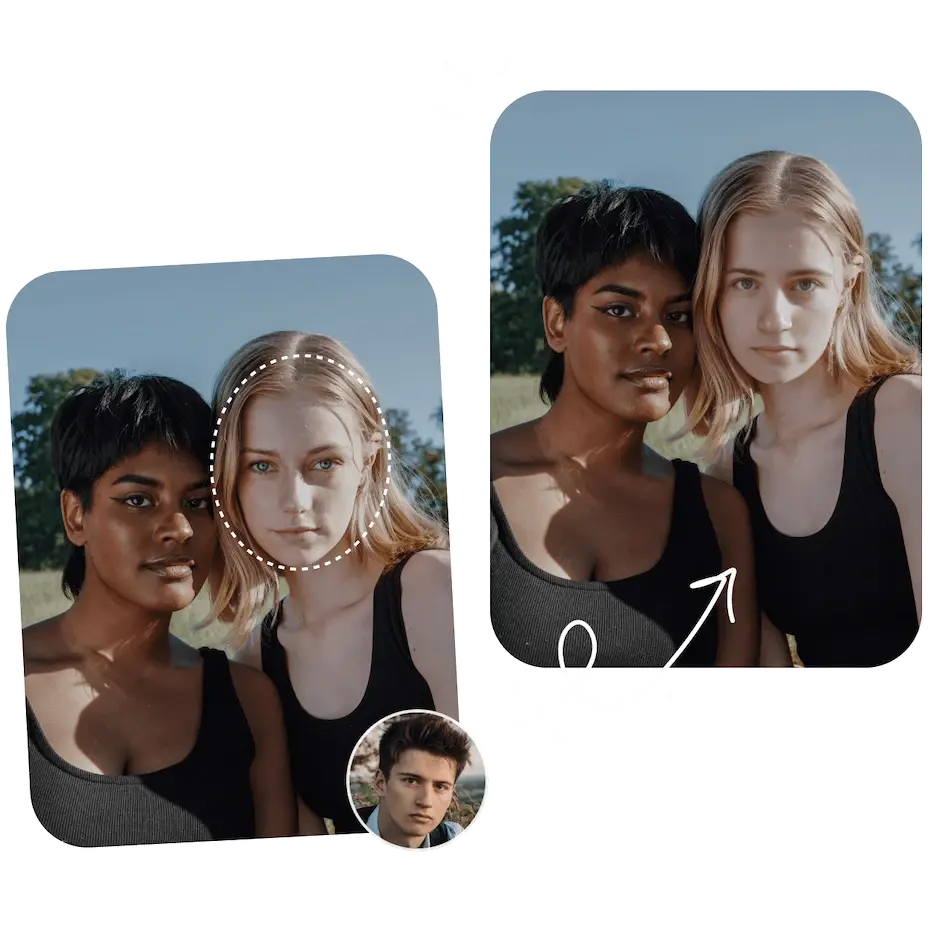
Two-person portrait showing one selected face and its replacement reference

Change only the people you choose

A detected person can receive a replacement while everyone else remains unchanged.

BUILD A FACE MAP

How to face swap multiple faces online

Use the same easy process for a group photo, a video with multiple faces, or an animated GIF. No app install or account is needed for the free run.

  1. 1

    Upload a photo, video, or GIF

    Choose Image, Video, or GIF above, keep Multiple Faces selected, and upload the original file. Images can be JPG, PNG, WEBP, or HEIC; supported moving files include MP4, MOV, AVI, WEBM, and GIF. For timed media, move to a clear frame where everyone can be seen.

  2. 2

    Detect and match every face

    Let the AI find the faces in your media. Add a clear replacement photo beside each person you want to change. Each match stays separate, so different people can receive different faces.

  3. 3

    Create and download

    Start the AI face swap, review the result, and download it with no watermark. Timed media includes a free 30-second run, and you can start without signing up.

One face map, three separate choices

The tool keeps every detected person in a separate row. Add a replacement where you want a change, or leave a row empty when that person should stay the same.

Person AFace 1Person A → Face 1
Person BFace 2Person B → Face 2
Person CNo photoPerson C unchanged

PHOTO, VIDEO, AND GIF

One multiple face swapper for every common format

Choose the media type that fits your idea. The tool keeps face matching clear even when several people appear in the same scene.

Multiple photo face swap online

Change several people in one group image while keeping the background, pose, clothes, and layout. Start in the Image tab and match a new photo to each detected person. Multiple Faces edits several people inside one picture, while Batch Images applies one replacement across more than one photo.

Swap faces in a photo

Multiple face swap video online free

Pause on a clear frame, detect the people, and match a new face to each one. The AI follows those separate assignments through the selected part of the video. You can upload a one-minute or longer file, process up to 30 seconds with the free option, or choose a longer section with Credits.

Swap faces in a video

Multiple GIF face swap

The multiple face swap GIF workflow turns a reaction, short animation, or looping meme into a group edit. Select a clear frame, assign the replacement photos, and create an animated result. The free option covers a GIF section of up to 30 seconds.

Swap faces in a GIF

MULTIPLE IS NOT THE SAME AS BATCH

Choose the right face swap mode before you upload

Multiple Faces is for several people inside the same source. Batch modes solve a different task. All four choices are available in the workspace, so use this comparison to start in the correct mode.

ModeBest forHow matching worksOutput
Multiple Faces This pageA group photo, video, or GIFOne replacement photo for each detected personOne file with several changed faces
Single Face One person in one source fileOne original face to one replacement photoOne file with one changed face
Batch Images Several source photosOne replacement face across every uploaded photoSeveral edited image files
Batch Faces Several face ideas on one photoSeveral replacement faces tested on the same sourceSeveral versions of one image

IDEAS FOR GROUP CONTENT

Ideas for group photos and moving media

Multi-person face replacement is useful when a scene depends on the group, not just one subject.

Group photos with friends or family

Create a funny version of a holiday picture, reunion photo, class image, or team shot while keeping each new face linked to the right person.

Short videos with several people

Edit a conversation, dance, reaction clip, or team scene. Use a clear frame to map the faces before the AI follows them through the video.

GIFs, reactions, and memes

Replace several faces in a looping GIF to make a quick reaction or inside joke that is easy to save and share.

Creative character edits

Test different casts, roles, or characters in one image or clip. Separate face matching gives each person a clear part in the final edit.

BETTER INPUT, BETTER MATCHES

How to get a realistic multiple face swap

AI handles the replacement, but clear source media and careful matching make the biggest difference when several people are present.

  1. 01

    Use clear front-facing photos

    Choose one sharp replacement photo for each person. Even light, a visible full face, and a natural angle help the new face stay stable.

  2. 02

    Pick a frame where everyone is visible

    For a multiple video face swap or GIF, pause where the needed faces are not blocked by hands, hair, objects, or other people.

  3. 03

    Match similar angles and expressions

    A reference face that looks in the same direction as the original person usually blends better, especially in side views and fast motion.

  4. 04

    Check every face before creating

    Review the detected face and its replacement photo one pair at a time. Correct mapping prevents two people from receiving the wrong faces.

FREQUENTLY ASKED QUESTIONS

Questions about editing several faces

Quick answers about free use, face mapping, supported media, and output quality.

Is multiple face swap free with no sign up or watermark?

Yes. You can use the available free quota in your browser without creating an account, and finished photos, videos, or GIFs have no ClothesChange AI watermark. Sign in only when you want to use purchased Credits or save results to your account history.

How does mapping work when several people are visible?

The AI detects each face in the original media separately. You then attach a replacement photo to every person you want to change, so each selected face keeps its own one-to-one match.

Can I swap multiple faces in one photo?

Yes. Select Image and Multiple Faces, then upload the group photo. After detection, match a different replacement image to each visible person and create the result.

Can I face swap multiple photos at once?

Batch editing is also called bulk face swap. Its free option follows the available image quota. Use Batch Images for one target face across several source photos, Batch Faces for several target faces on one source, and Multiple Faces for several people inside one picture.

Multiple face swap video online free: 1-minute files?

Yes. Upload the full file and choose the exact part to process. The multiple face swap video AI free option covers a selected section of up to 30 seconds; use credits when you need a longer selected section.

Does the multiple GIF face swapper keep the result animated?

Yes. Upload an animated GIF, detect the faces on a clear frame, and match the replacement photos. The generated result remains a GIF.

Do multiface swap and multiple faceswap mean the same thing?

Yes. Both terms describe replacing more than one person while keeping a separate replacement photo assigned to each selected face.

What affects the number of faces and result quality?

Use sharp replacement photos with similar angles, and choose a source where every person is large, clear, and visible. Small, blocked, or blurry faces may not be detected well. Check each assignment before creating the result.

Start your group face edit

Start a free AI multiple face swap: upload a photo, video, or GIF, match the people, and create your result online with no sign up.

Swap multiple faces now