01
Upload Your Photo
Add the image you want to edit. This page requires at least one reference photo before you can generate.
Upload a photo and describe the change in plain words with an uncensored AI photo editor. Remove objects, replace backgrounds, improve photos, or try a new look directly in your browser.
Free AI photo editor online
ClothesChange AI is an online AI photo editor for changing an existing image with a text prompt. Add a photo, say what to remove, replace, improve, or restyle, and create a new version in the same browser. Free access is available without sign up, and the editor shows when a selected model or setting uses Credits.
AI photo editing examples
Each example pairs a generated source image with the result of a real GPT Image 2.5 Flare edit. The prompt shows the exact change requested.
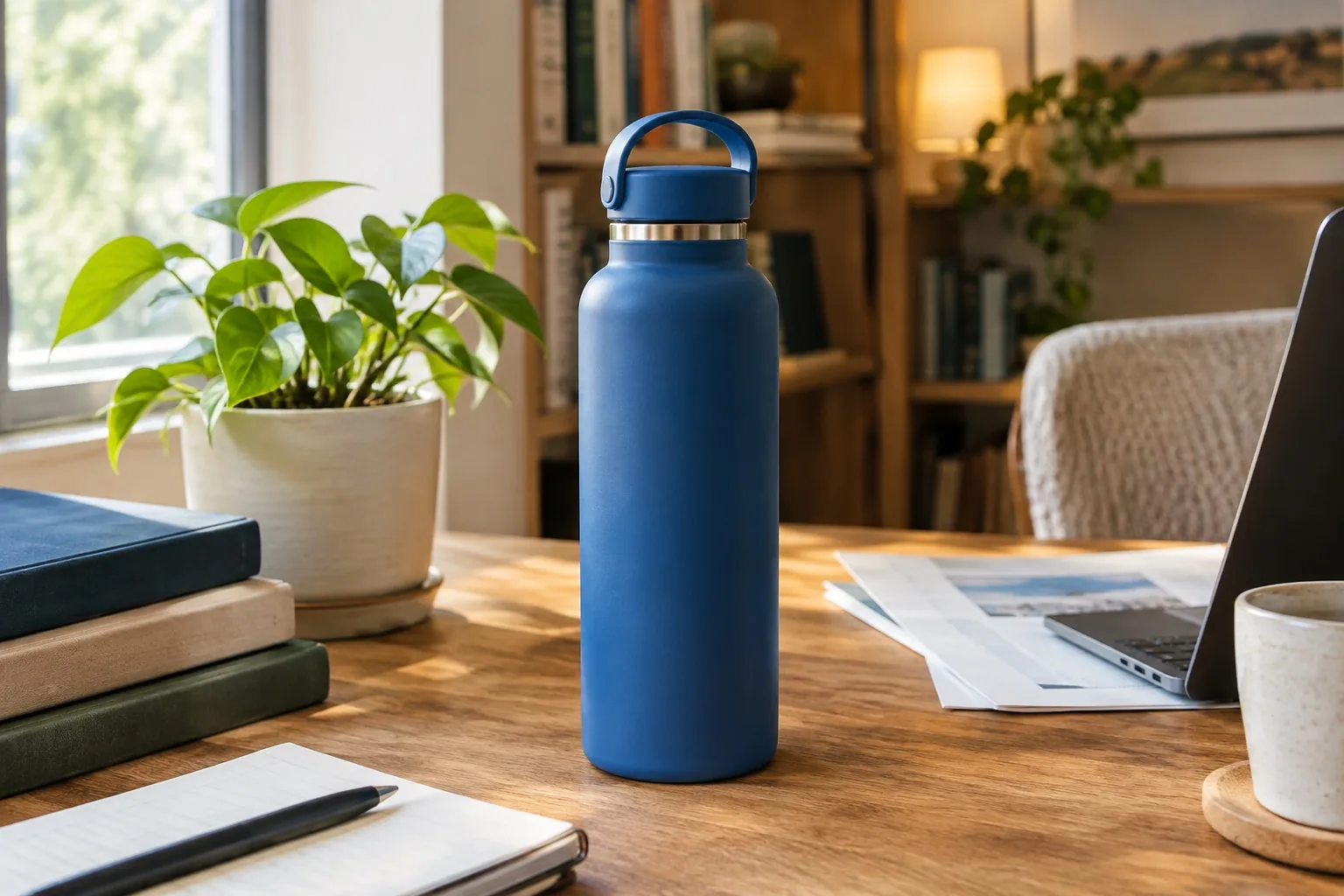
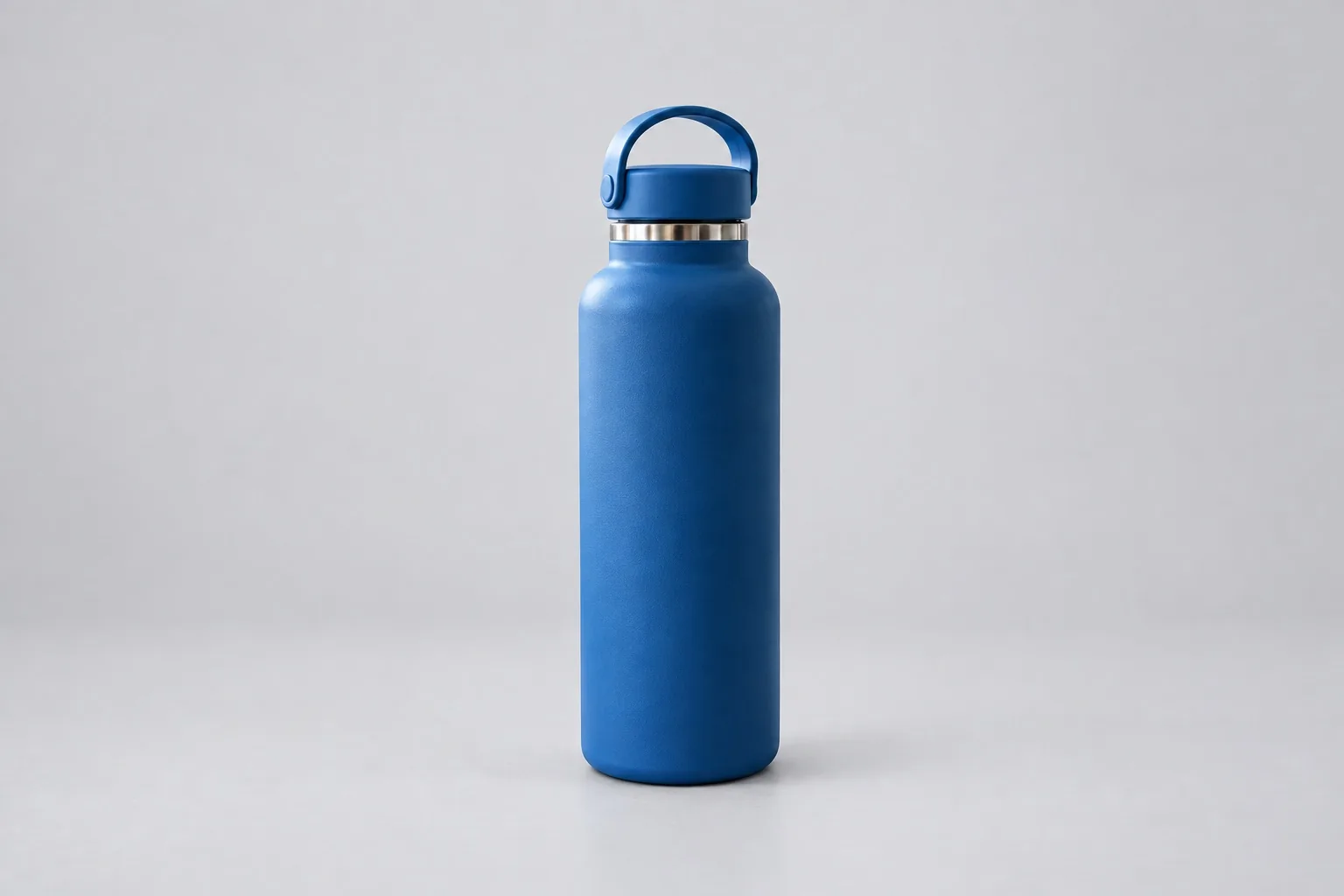
Remove desk clutter and turn a casual product photo into a cleaner image while keeping the product in place.
Edit prompt
“Remove the books, plant, and loose papers. Replace the background with a clean light gray studio surface. Keep the blue water bottle exactly the same.”
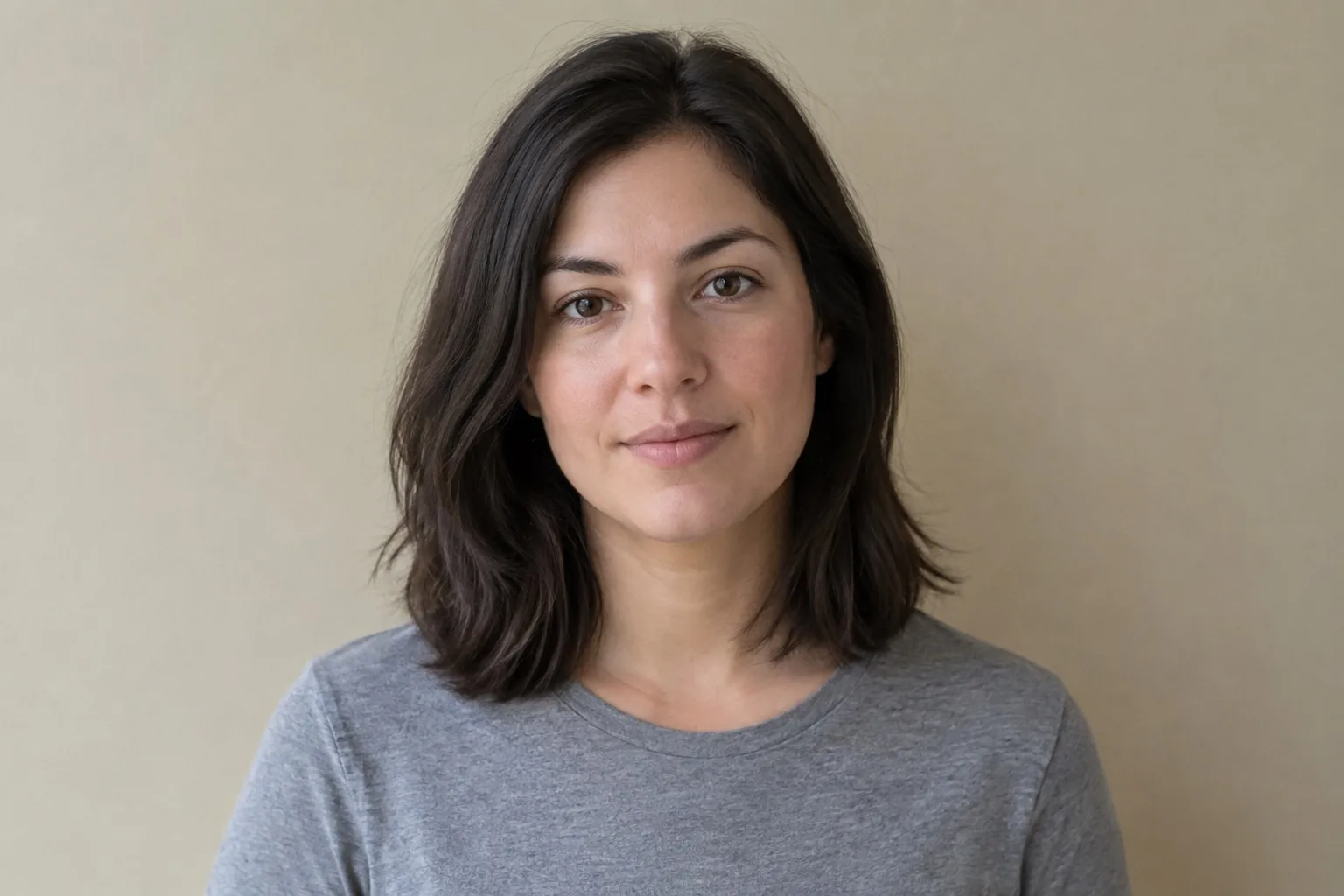
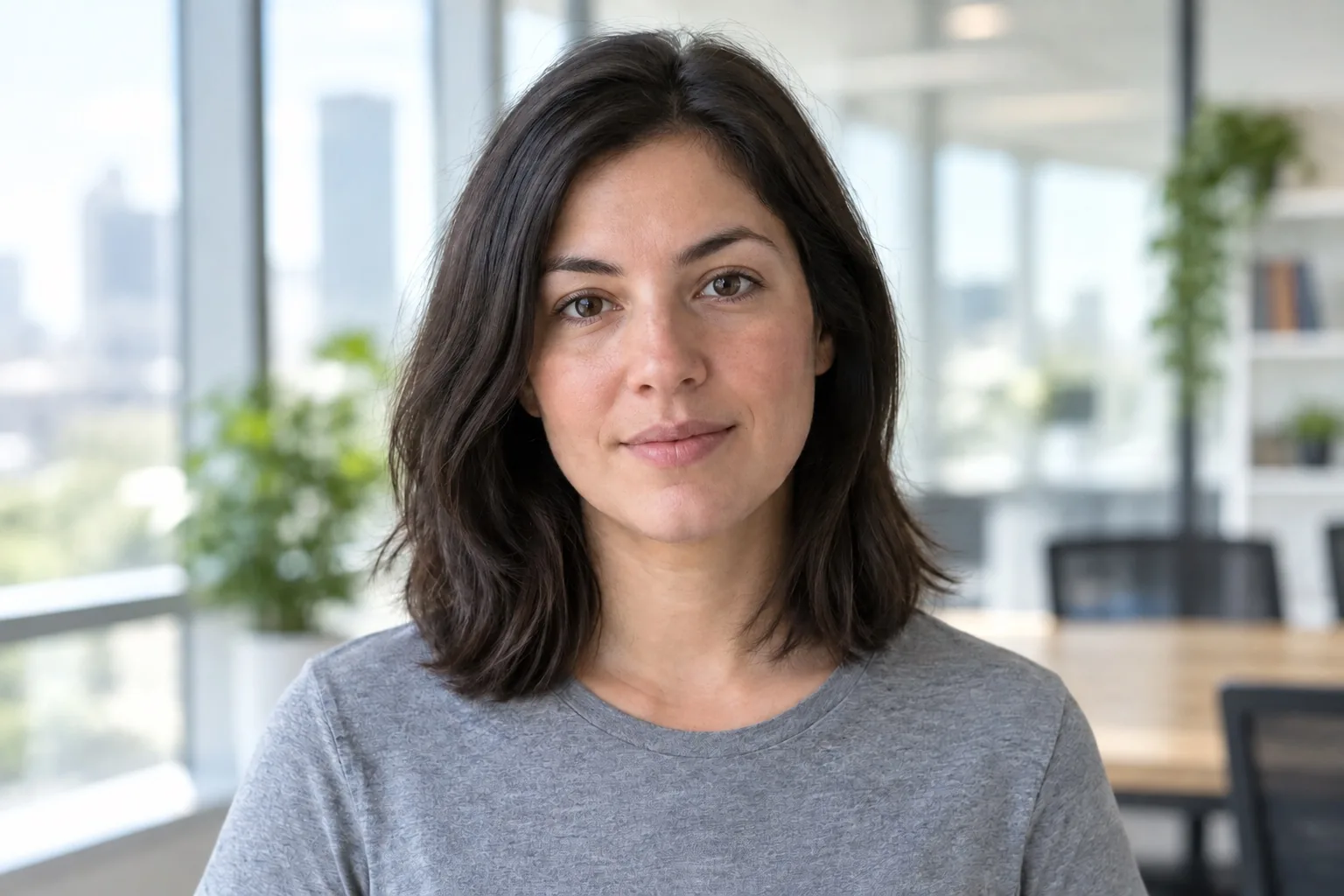
Move a portrait from a plain wall to a bright office while keeping the person, pose, clothes, and expression.
Edit prompt
“Replace only the plain beige wall with a bright modern office. Keep the same person, face, hair, expression, gray shirt, pose, and camera angle.”
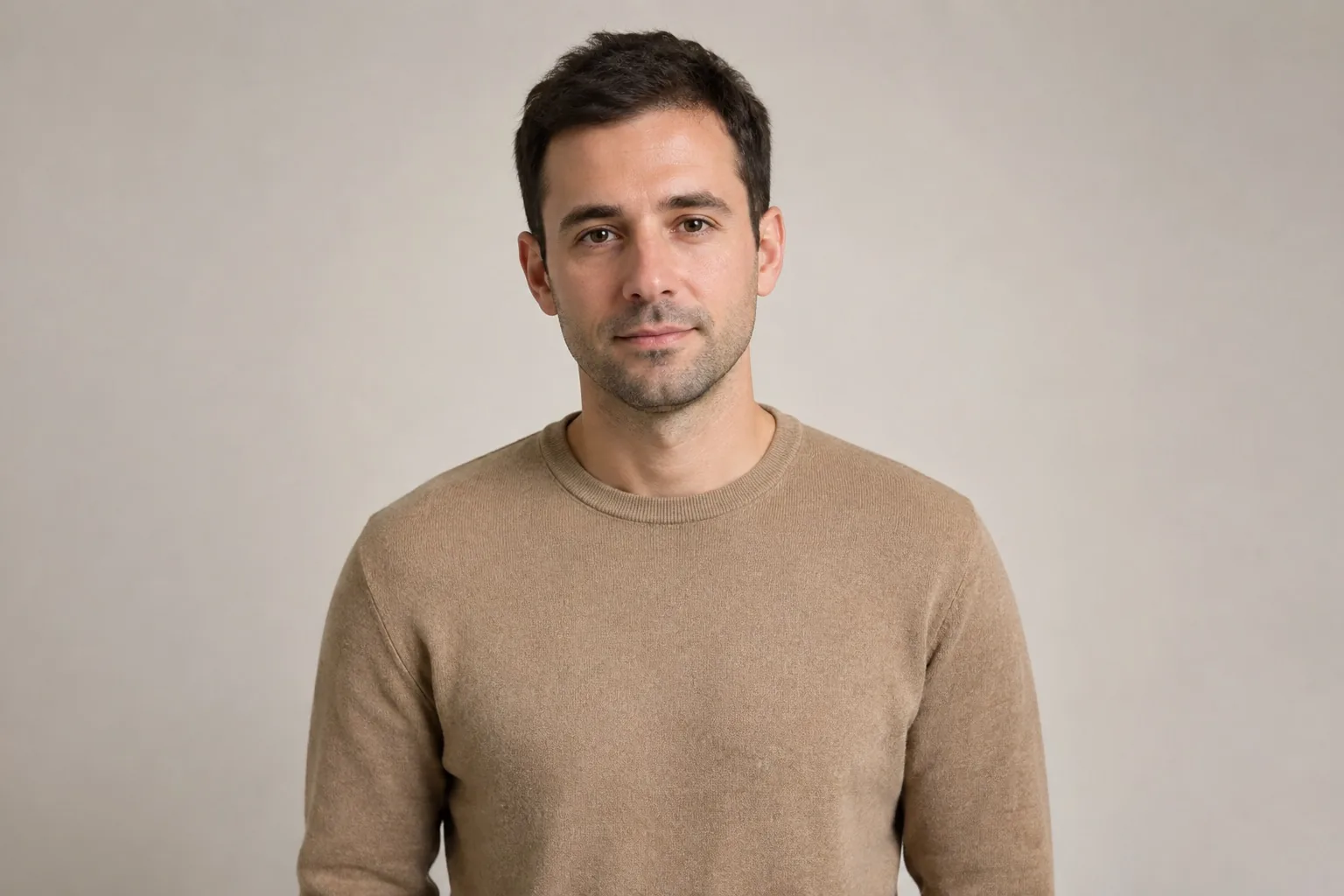
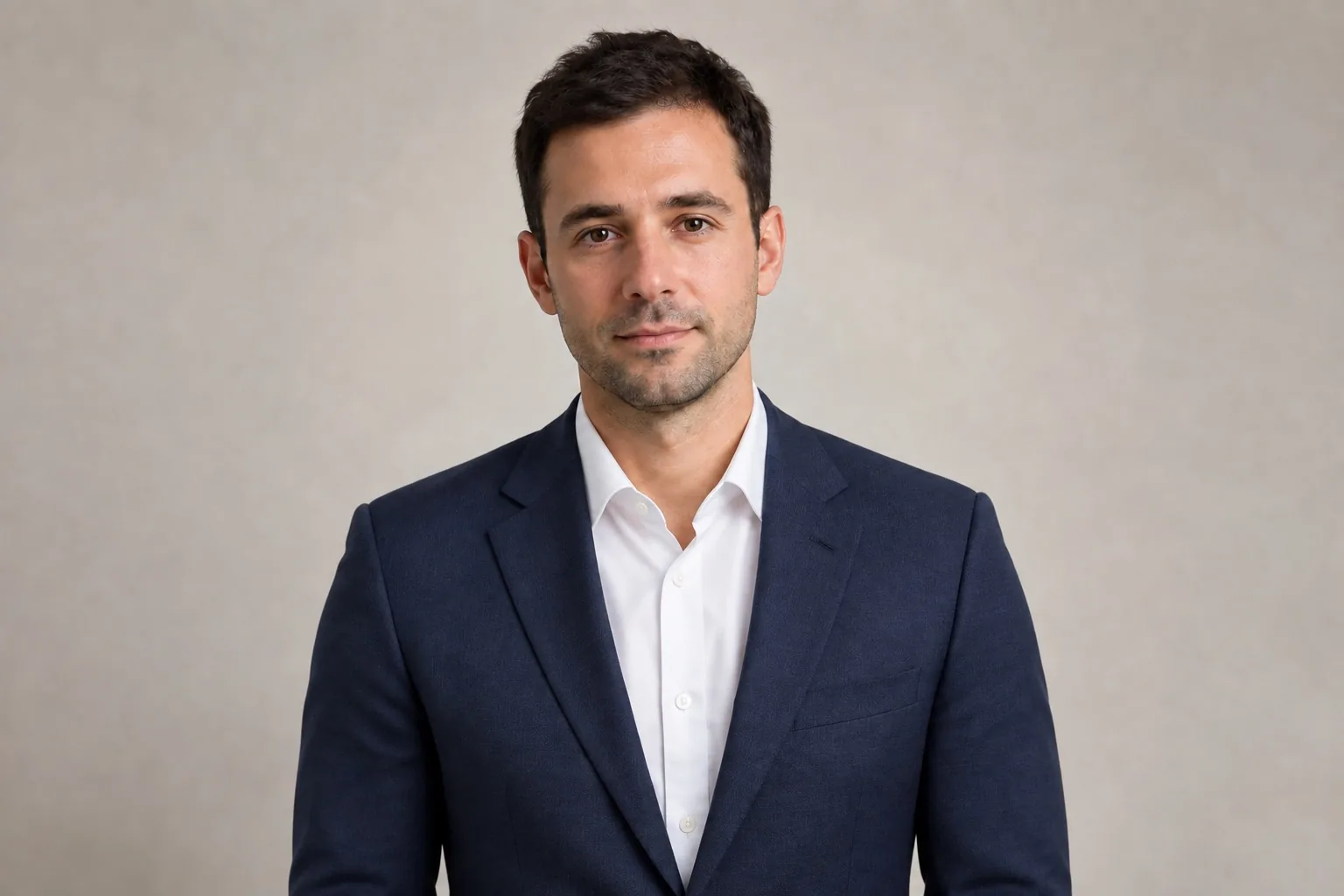
Replace one item of clothing without changing the person, face, pose, lighting, or background.
Edit prompt
“Change only the tan sweater into a tailored navy blazer over a white shirt. Keep the same person, face, pose, background, and lighting.”
Upload a photo, write the change, and review the new image in three steps.
Add the image you want to edit. This page requires at least one reference photo before you can generate.
Say what should change and what should stay the same. Choose a model and any available image settings.
Create the edited photo, review the result, then download it, retry, or use it as the reference for another edit.
AI photo editor with prompt
A useful prompt names the part to change, the new result, and anything that must stay the same. Start with one direct sentence, then add details only when they matter.
Remove the person in the background and fill the empty area naturally.
Replace the background with a bright modern office and keep the subject unchanged.
Improve the light and color while keeping the photo realistic.
Change the jacket to black denim and keep the same face and pose.
Turn the photo into a soft illustrated style with the same composition.
Use a text prompt for common photo cleanup, background, portrait, clothing, product, and style changes.
Ask the editor to remove an unwanted object, rebuild the open area, or add a new detail to the scene.
Move a person or product into a studio, office, outdoor scene, or another background described in the prompt.
Request brighter light, clearer color, better contrast, or a cleaner overall look while keeping the image natural.
Try changes to hair, makeup, expression, portrait light, or visual style while asking the editor to preserve identity.
Replace an outfit, color, fabric, or product material and tell the editor which parts of the photo must remain unchanged.
Turn a photo into an illustration, painting, sketch, cartoon, or another visual style without starting from an empty canvas.
Before you edit
The editor reads current model capabilities, so the available image ratios, resolutions, output counts, and Credit cost update when you change models.
This page edits an existing image. Add at least one reference photo before starting a generation.
Each uploaded image must be 30 MB or smaller. Use a clear source photo with enough detail for the requested change.
Clothes Editor Standard is selected when the page opens. You can choose another available editing model in the editor.
Download a completed result, retry the task, or send the result back as the reference for another photo edit.
Direct answers about free access, prompts, uploads, models, and edited results.
More AI image tools
Choose a focused tool when your next image or video task needs a different workflow.
Change an outfit in a photo with clothing images or a written idea.
Open AI Clothes ChangerCreate a new image from text or use reference images to guide the result.
Open GPT Image 2.5Swap a face in a video with a separate face photo.
Open Video Face SwapAdd a photo, write one clear prompt, and create the next version in your browser.